20.0 - Updated on 12-10-2025 by Anthony Laffan
19.0 - Updated on 08-27-2025 by Sai Hamsa Lekha Yerra ESD
18.0 - Updated on 04-23-2024 by Meagan C. McKernan
17.0 - Updated on 03-06-2024 by Jen Reil
16.0 - Updated on 03-05-2024 by Jen Reil
15.0 - Updated on 03-05-2024 by Jen Reil
14.0 - Updated on 02-28-2024 by Alex Cantor
13.0 - Updated on 02-27-2024 by Alex Cantor
12.0 - Updated on 01-17-2024 by Jen Reil
11.0 - Updated on 12-20-2023 by Jen Reil
10.0 - Updated on 10-27-2023 by Meagan C. McKernan
9.0 - Updated on 10-18-2023 by Meagan C. McKernan
8.0 - Updated on 10-06-2023 by Jen Reil
7.0 - Updated on 10-06-2023 by Meagan C. McKernan
6.0 - Updated on 10-05-2023 by Meagan C. McKernan
5.0 - Updated on 10-05-2023 by Meagan C. McKernan
4.0 - Updated on 10-05-2023 by Meagan C. McKernan
3.0 - Updated on 10-05-2023 by Meagan C. McKernan
2.0 - Updated on 10-05-2023 by Meagan C. McKernan
1.0 - Authored on 10-05-2023 by Meagan C. McKernan
1. Go to the Foxit Pro Installers SharePoint site. Double click on the Windows Foxit PDF Editor to download the installer.
2. Once the installer is fully finished downloading, go to your downloads folder and double-click on the icon for the installer to load.
3. Another window will pop up, welcoming you to the installer program. Select "next."
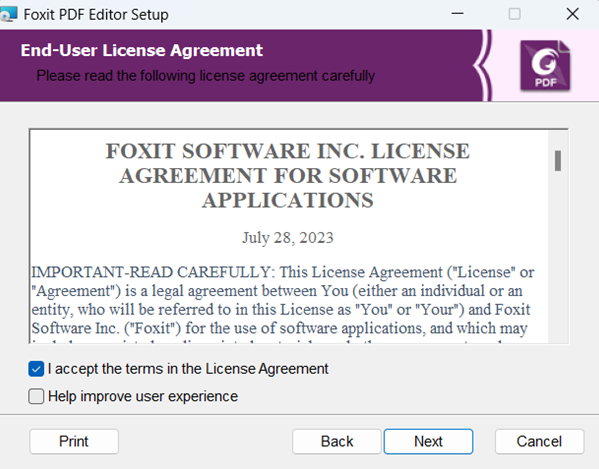
4. Click the box to accept the terms in the License Agreement. Select "next."
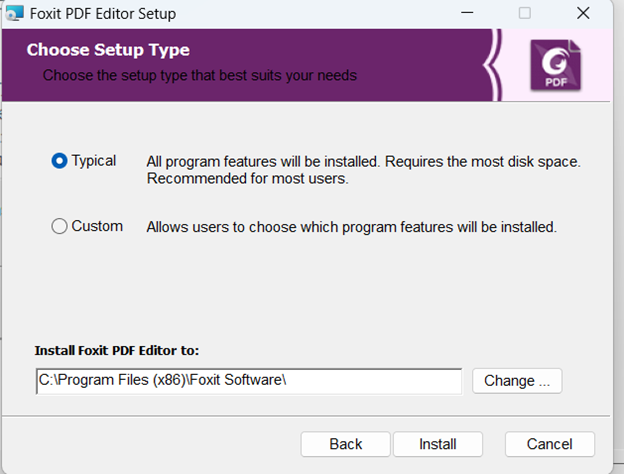
5. You will then be asked to choose a setup type. Select “typical” and click "install." Your FoxIt software download will begin.
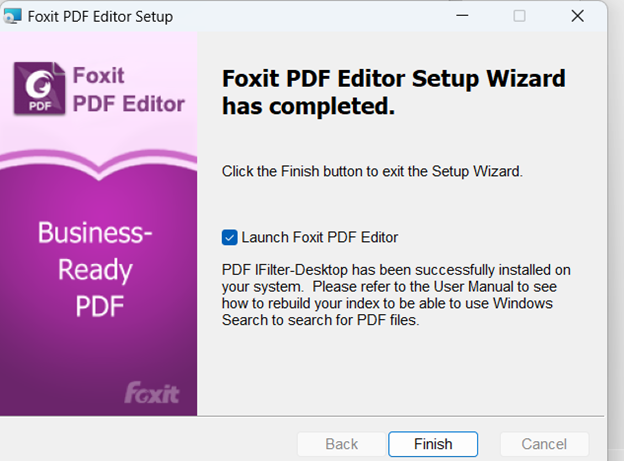
6. Once the download has completed, you will receive a completion message. Select "Launch Foxit PDF Editor," then click "Finish."
7. You are now ready to activate Foxit PDF Editor through Single Sign On (SSO).