20.0 - Updated on 12-10-2025 by Anthony Laffan
19.0 - Updated on 08-27-2025 by Sai Hamsa Lekha Yerra ESD
18.0 - Updated on 04-23-2024 by Meagan C. McKernan
17.0 - Updated on 03-06-2024 by Jen Reil
16.0 - Updated on 03-05-2024 by Jen Reil
15.0 - Updated on 03-05-2024 by Jen Reil
14.0 - Updated on 02-28-2024 by Alex Cantor
13.0 - Updated on 02-27-2024 by Alex Cantor
12.0 - Updated on 01-17-2024 by Jen Reil
11.0 - Updated on 12-20-2023 by Jen Reil
10.0 - Updated on 10-27-2023 by Meagan C. McKernan
9.0 - Updated on 10-18-2023 by Meagan C. McKernan
8.0 - Updated on 10-06-2023 by Jen Reil
7.0 - Updated on 10-06-2023 by Meagan C. McKernan
6.0 - Updated on 10-05-2023 by Meagan C. McKernan
5.0 - Updated on 10-05-2023 by Meagan C. McKernan
4.0 - Updated on 10-05-2023 by Meagan C. McKernan
3.0 - Updated on 10-05-2023 by Meagan C. McKernan
2.0 - Updated on 10-05-2023 by Meagan C. McKernan
1.0 - Authored on 10-05-2023 by Meagan C. McKernan
How to Download Foxit PDF Editor for Windows
- Click “Download with Foxit Account” at the bottom of the form that opens in the web browser.
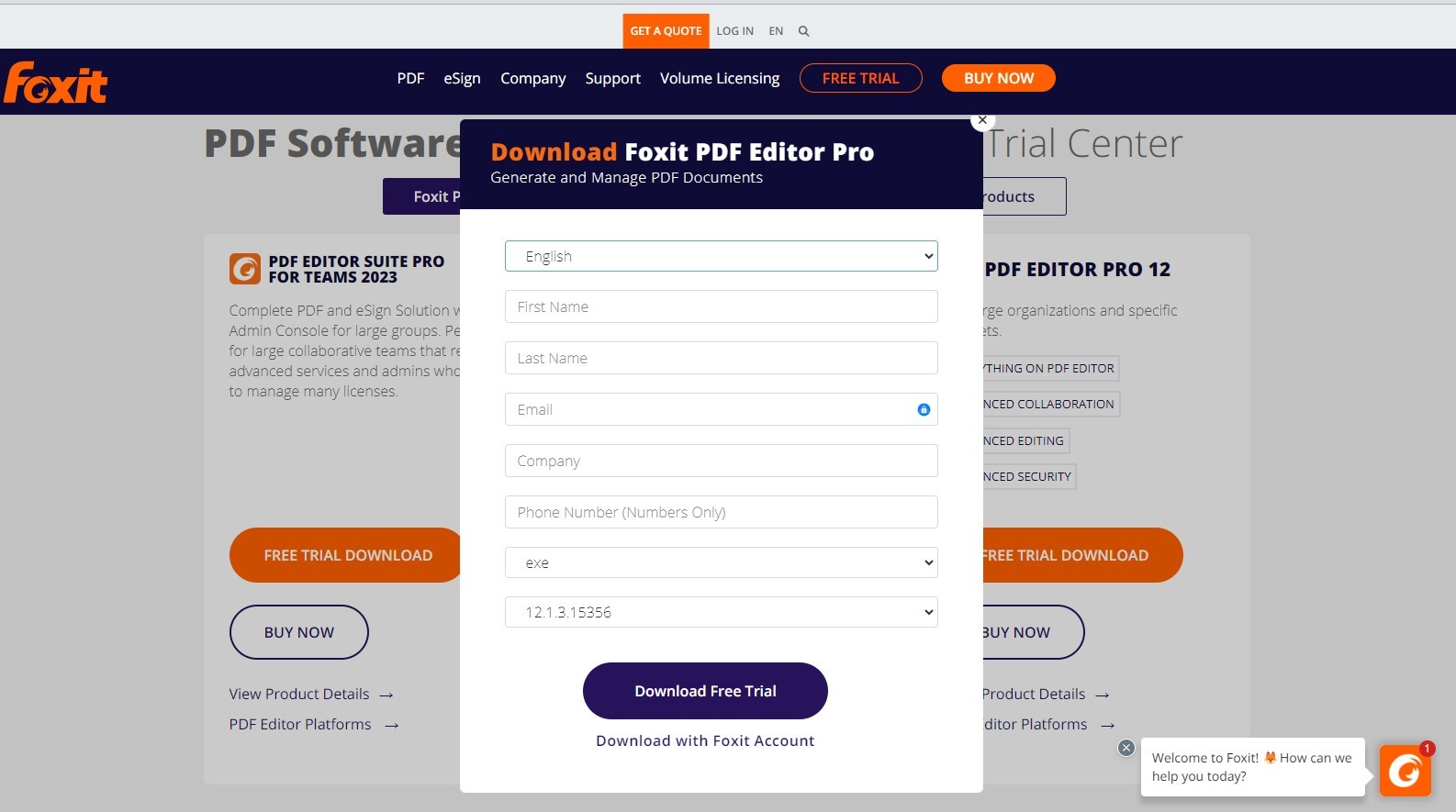
- Enter first and last name, email address (using the format of netid@umass.edu), UMass Amherst for company, and phone number in the account login window.
- You will then have a pop-up window come up where you can save the installer for PDF Editor Pro 13 to your computer’s hard drive.
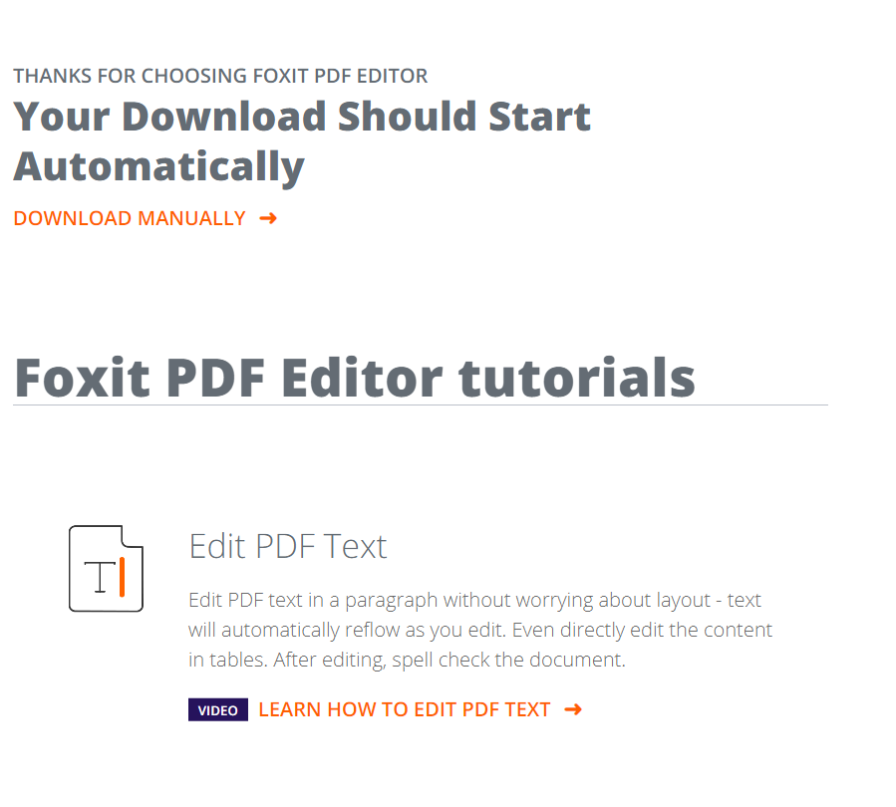
- Once the installer is fully finished downloading, click on the icon for the installer in your downloads.
- Another window will pop up, welcoming you to the installer program.
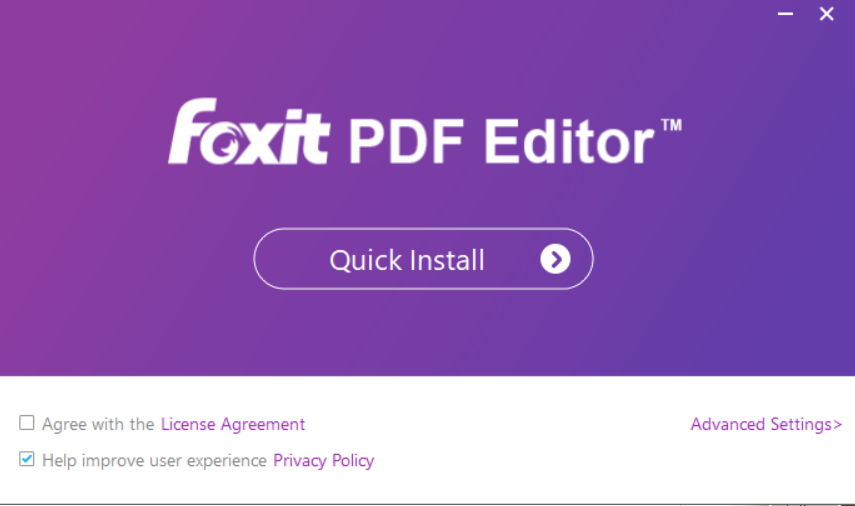
- Click the open box to agree to the License Agreement.
- Click Quick Install
- You will then be able to follow the instructions to activate the software through Single Sign On (SSO).